Custom Search
Showing posts with label Scripting. Show all posts

Script to Run As Admin - Run As Another User!

'Run As' allows user to run or execute a file with the context of another user specially it is called as run as admin. This is often important for a limited right users to run a executable file with administrator right. Another important feature of this file is to provide power the executable file to run it with One-Click. The VB Script is as follows:

-------------------Run-as-Admin.vbs-----------------------


'Bismillahir Rahmanir Rahim
'This is a SCRIPT for limited user to run a PROGRAM which required ADMIN right. In other word this 'script let users run a application on be half of another user.


'Code for Computing Relative Path.
Dim RPATH
Dim aRPATH
Set fso = CreateObject("Scripting.FileSystemObject")
RPATH = fso.GetParentFolderName(wscript.ScriptFullName)


'Setup Files required in the followng line.
aRPATH = RPATH & "\some-setup-files-here"


'Code for requesting a program to run as ADMIN
Dim oShell
set oShell= Wscript.CreateObject("WScript.Shell")

'Put desire user name in the following line
oShell.Run "runas /noprofile /user:administrator "& Chr(34) _
   & aRPATH & Chr(34)
WScript.Sleep 100

'ADMIN PASSWORD/user password required in the following line.
oShell.Sendkeys "admin-password-here~"

Wscript.Quit

'Note that the execiutable file & this VB Script need to remain in same directory.
------------------------Script End----------------------------

Now next part would be to encode the VBS code to VBE to secure the from viewing. For this MS Script Encoder might help & this script encoder only works up to Windows XP. I think the following link might be helpful to go ahead if someone fell interest on it...
                                                                                               http://xinn.org/RunasVBS.html     

Lock Windows XP-7-Vista-Server 2003-Server 2008 Commandline

To lock Windows XP, Windows 7, Windows Vista, Windows Server 2003, Windows Server  2008 from commandline or using batch follow the following command.
Lock Windows Computer Commandline

----------------WiNlocker.bat-------------------


Rundll32.exe user32.dll,LockWorkStation                                                                

--------------------------------------------------

Execute the above command to lock windows computer thru Run/Command prompt/as a bat file. This dos command is useful to automate or performed an unattended action regarding Windows locking. 


Download the command as script named WiNlocker.bat.

Run Registry File Silently!

This is important often to execute a registry file silently. Specially in batch file or scripting when it might required to run or execute a set-of-process/a-single-process automatically. Please find the VBS code stated as below to run a registry file silently.   

Silent execution of a registry file


'--------------------------Script Start---------------------------------

Set oShell = CreateObject("Wscript.Shell")

'Your .Reg file and path goes here as in the example below
sRegFile = "File Path\*.reg"

'This line runs Regedit in silent mode
oShell.Run "regedit.exe /s " & Chr(34) & sRegFile & Chr(34), 0, True

'-------------------------Script End -----------------------------------

Please download the script RunRegSilent.vbs.

Open Windows DEVICE Manager Command-line!

Open Windows DEVICE Manager Command-line

Windows DEVICE Manager is an important management portion of Windows. To open Windows DEVICE Manager command-line use the following command in Command Prompt or in RUN. This command is important to write batch script & so on.


RunDll32.exe devmgr.dll DeviceManager_Execute

Open Windows Device Manager Commandline

  You also can download Windows  DEVICE Manager script from here.

Is Windows OS 64 or 32 bit?


Unlike to know OS version 32 or 64 bit from System Properties another useful way may be scripting. This is useful because in scripting it may require a conditional decision depending on the system type.  So it has been figured out a number of command-line processes by which it can be determined that – is the computer running with 64 bit or 32 bit OS. This script should be compatible with Windows XP, Windows 7, Server 2003 and possibly Windows 2000, 98, me & Server 2000. So let’s observe a number of batch scripting processes to find the system type.


Process 1: The following batch command is extracting information from registry & looking for matching “x86”.

OS Check p1.bat

@echo off
Set RegQry=HKLM\Hardware\Description\System\CentralProcessor\0
REG.exe Query %RegQry% > checkOS.txt
Find /i "x86" < CheckOS.txt > StringCheck.txt
If %ERRORLEVEL% == 0 (
    Echo "This is 32 Bit Operating system"
) ELSE (
    Echo "This is 64 Bit Operating System"
)
Del checkOS.txt /f
Del StringCheck.txt /f
pause


Process 2: The following batch command is looking for the existence for “ProgramFiles(x86)”.

OS Check p2.bat

@echo off
if defined ProgramFiles(x86) (
@echo yes
@echo Some 64-bit work
) else (
@echo no
@echo Some 32-bit work
)
Pause

Process 3: This should be compatible with Windows XP, Windows 7, Server 2003 and possibly Windows 2000, 98, me & 2000 Server.

OS Check p3.bat

@echo off
:: Let's start out by testing for WMIC:
:_TESTWMIC
WMIC /? >nul 2>&1
if %errorlevel% EQU 9009 (
    GOTO _CHECKX86
) ELSE (
    GOTO _CHECKOSTYPE
)

:: If we did not find WMIC then we simply go check to see if the Program Files x86 folder is there. We can check that one of two ways. We can either check that with the environmental variable %ProgramFiles(x86)% or by checking to see if the registry entry exists which would be HKLM/Software/Microsoft/Windows/CurrentVersion /v "ProgramFilesDir (x86)". If we found WMIC then we go and check what OS we are running which is pretty simple.

:: We are on an operating system that does not support wmic os get osarchitecture so we cannot determine whether we are on a 32 or 64 Bit OS so now we check for the Program (x86) directory as a fallback.

:_CHECKX86
IF NOT "%PROGRAMFILES(X86)%" == "" (
echo I am presumably 64 Bit because I have "%PROGRAMFILES(X86)%"
) ELSE (
echo I am more than likely a 32 bit OS because I do not have "%PROGRAMFILES(X86)%"
)
GOTO _SOMEWHERE_ELSE

:: If we found WMIC then we now check for the OS Type. The command for that is wmic os get name

:_CHECKOSTYPE
FOR /F "tokens=3 delims= " %%a in ('wmic os get name') Do If /i %%a==XP (GOTO _CHECKX86) ELSE (GOTO _CHECKFORSERVER)

:: The above works if you are just checking for XP however the server token is #4. That is below

:_CHECKFORSERVER
FOR /F "tokens=4 delims= " %%a in ('wmic os get name') Do If /i %%a==2003 (GOTO _CHECKX86) ELSE (GOTO _CHECK32)

:: If we got this far then we are on an OS that can handle this code we will definitely be able to tell whether or not we are on a 64 bit OS.

:_CHECK32
For /F "tokens=2 delims==,-" %%a In ('wmic os get osarchitecture /value') Do (
set _osarch=%%a
)

:: Do what you want with %_osarch% now.
echo I am a %_osarch% bit OS.

:: Or utilize an IF statement for it.
:: Do what you want with %_osarch% now.
:: IF _osarch==32 (
:: echo I am a 32 Bit OS
:: ) ELSE (
:: echo I am not a 32 Bit OS
:: )

:: Clear the _osarch variable once you are done with it
Set _osarch=
Pause

To download all the above batch follow the Link. Hope these will help.

Batch Script to Customize IE PROXY Settings!

Batch/Registry/VB Scripting to Customize IE PROXY Settings is a simple but powerful way to automate PROXY settings for large numbers of PROXY users. Internet Explorer PROXY settings customization is more important issue for System Administrator. This is essential to handle LAN or MAN connected network users.

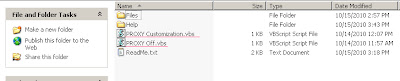
PROXY Customization is a useful scripting way to customize IE PROXY settings for large number of computers at a while. (Group) Mail the batch & instruct the user(s) to run the “PROXY Customization.vbs” for once. Or put the batch in a share folder & instruct the user(s) to access the tools from there. Download PROXY Customization v1.0.

Figure - Run PROXY Off.vbs to disable PROXY Or run PROXY  Customization.vbs to  enable & set PROXY

Feature:
1. Disabling PROXY.
2. Enabling PROXY to a custom ip & port.
3. Bypassing PROXY to local address & adding exception.


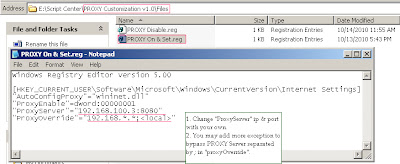
Figure - Seting PROXY IP & Port and adding Exception

You just need to change the PROXY Server ip & port with your own. To set your own ip & port edit the “PROXY On & Set.reg” file.     

That’s all. You are ready to use PROXY Customization. For more help please read Help & ReadMe.txt. And you are also welcome to put a suggestion or get help thru comments.

To customize IE PROXY settings download PROXY Customization v1.o. 

Batch Script to find Motherboard information!


Knowing Motherboard Name, Model, Manufacturer, Serial thru batch script or commandline is essential when someone wants to know these motherboard information without opening the casing of the CPU. This is really sophisticated to retrieve motherboard information using script.  However the following VB Script can do the job to retrieve Motherboard Name, Model, Serial Number and Manufacturer information in Windows.

----VBS Code Start----
strComputer = "."
Set objWMIService = GetObject("winmgmts:" & _
   "{impersonationLevel=impersonate}!\\" & _
   strComputer & "\root\cimv2")
Set colBaseBoard = objWMIService.ExecQuery _
   ("Select * from Win32_BaseBoard")
For Each objBaseBoard in colBaseBoard
   Wscript.Echo "Serial Number: " & objBaseBoard.SerialNumber
   Wscript.Echo "Manufacturer: " & objBaseBoard.Manufacturer
   Wscript.Echo "Name: " & objBaseBoard.Name
   Wscript.Echo "Product: " & objBaseBoard.Product
Next
----VBS Code End-----

I have written a batch scripting tool to retrieve motherboard information through commandline. It is possible to export the information in text file. The tools information is as follows.

Retrieving Motherboard information using M-iNFO thru Command line


Feature:
1.        Find MOTHERBOARD information.
2.       Export the report.
  
Instructions:
1.        Run the M-iNFO.cmd to find motherboard information.
2.       Find the exported report from "Report" folder.

To know motherboard information thru command line Download the Script.

Set IE Automatically detect settings via registry!


Setting IE Automatically Detect Settings via registry or script is simple but essential for system administrator to parse a large number of computers at a while. The script works for IE 6.0, IE 7 & IE 8.


 Automatically Detect Setting in LAN Settings


The tool IE Auto Detect Settings allows user to check &amp; uncheck the IE “Automatically Detect Settings” option.

IE Auto Detect Settings Tool


To check the settings run the script “Check-AutoDectSet.vbs” &amp; to uncheck the settings run the script “Uncheck-AutoDectSet.vbs”. Please note that it is free &amp; download now from one of the following links.


To automate IE Automatically Detect Setting DOWNLOAD THE SCRIPT.